The Ultimate Guide to Choosing the Perfect USB-C Hub

Ever tried connecting your laptop to a monitor, charging your phone, and transferring files all at once, only to realize you're two ports short? Yeah, that frustrated sigh you just let out is exactly why USB-C hubs exist.
I've tested over 50 different USB-C hubs across three years, and I'm going to save you from the overpriced duds and port-deficient nightmares lurking on Amazon.
This guide will walk you through everything you need to know about choosing the perfect USB-C hub for your specific setup - whether you're a digital nomad working from cafés or a content creator with a complex desk setup.
But before you pick one based solely on the number of ports, there's something critical about power delivery that most buyers get completely wrong...
Understanding the Basics of USB-C Hubs

A. What is a USB-C hub and why you need one
Ever tried to connect multiple devices to your sleek new laptop only to find there's just one lonely USB-C port? Frustrating, right?
A USB-C hub is basically your digital Swiss Army knife. It's a compact device that plugs into your computer's USB-C port and transforms it into multiple ports. Think of it as a multiplier for your connection options.
You probably need one if:
-
Your laptop has limited ports (looking at you, MacBook owners)
-
You regularly connect external monitors, hard drives, or SD cards
-
You're tired of unplugging one device to use another
The beauty of these hubs is their versatility. One minute you're transferring photos from your camera, the next you're presenting on a 4K display, all without swapping cables.
B. Key differences between USB-C hubs and traditional USB hubs
Traditional USB hubs feel like flip phones compared to the smartphones that are USB-C hubs.
| USB-C Hubs | Traditional USB Hubs |
|---|---|
| Reversible connector (no more "wrong way up") | One-way insertion only |
| Power delivery up to 100W | Limited power capabilities |
| Data transfer speeds up to 40Gbps | Usually maxed at 5Gbps |
| Can carry video signals | No native video support |
| Compact, slim design | Typically bulkier |
The game-changer? USB-C hubs can handle pretty much everything: power, data, video, and audio through a single connection. Their traditional counterparts mostly just expand your USB-A ports.
C. Benefits of investing in a quality USB-C hub
Cutting corners on a USB-C hub is like buying the cheapest tires for a sports car. Sure, it'll work... until it doesn't.
Quality USB-C hubs deliver:
-
Reliable connections: No more dropped signals during critical presentations or data transfers
-
Device protection: Good voltage regulation prevents power surges from frying your expensive gear
-
Future-proofing: As more devices adopt USB-C, your hub becomes increasingly valuable
-
Better heat management: Quality hubs dissipate heat effectively, preventing performance throttling
-
Longer lifespan: Premium materials and components simply last longer
I've seen too many people buy three cheap hubs for the price they could've paid for one good one. That bargain hub might look tempting, but when it fails mid-project, you'll wish you'd invested wisely.
Essential Features to Consider Before Purchasing
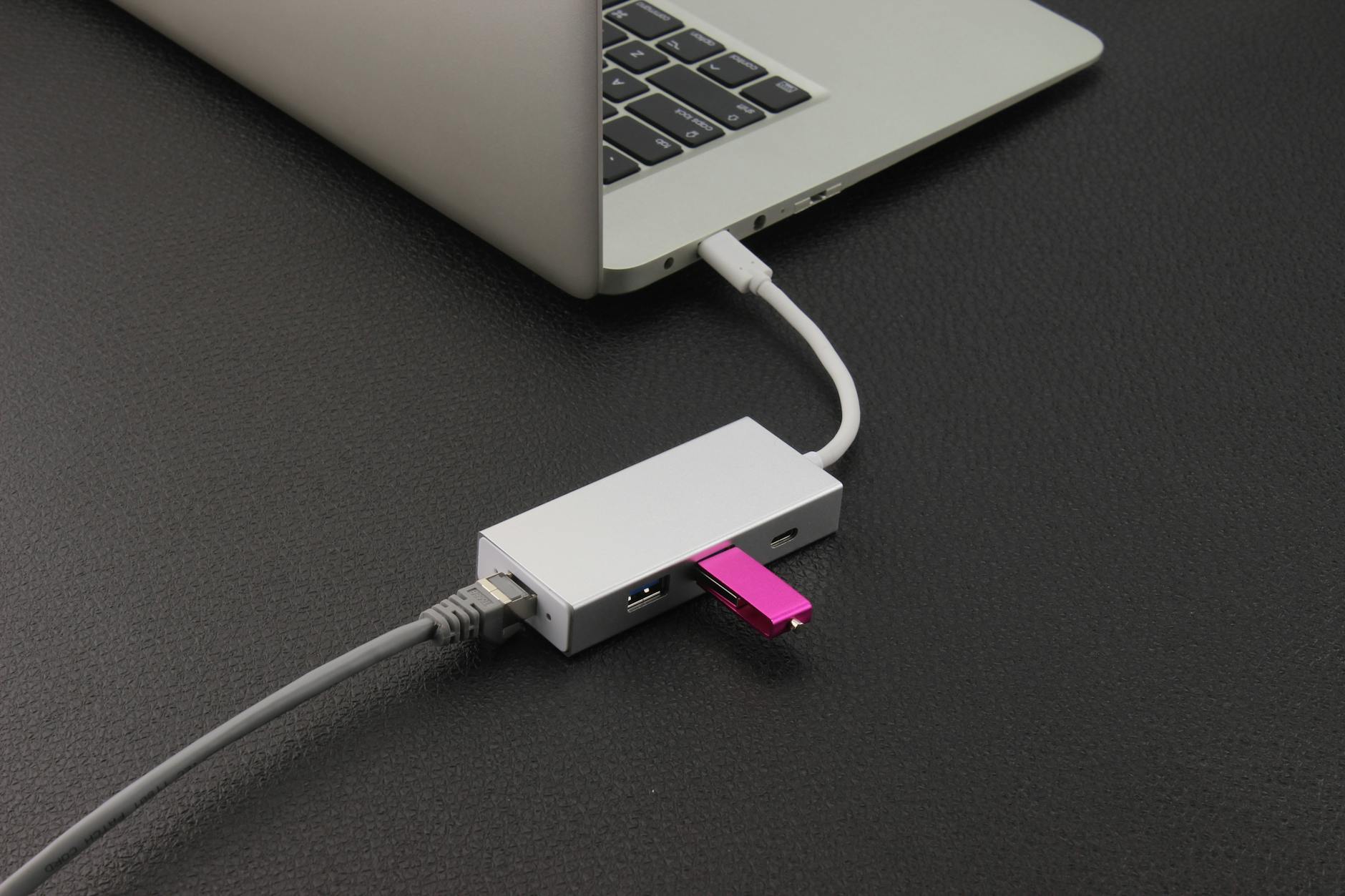
A. Port variety and quantity for maximum connectivity
Getting stuck with too few ports is a nightmare. Been there? Yeah, me too.
The whole point of a USB-C hub is solving the "not enough ports" problem. So don't cheap out on a hub that barely adds any connections.
Look for hubs that offer:
-
Multiple USB-A ports (at least 2-3)
-
SD and microSD card readers
-
HDMI or DisplayPort
-
Ethernet connection
-
Audio jack
The best hubs give you back everything your laptop manufacturer took away, plus extras. I've seen people literally cheer when they plug in a single cable and suddenly have 8-10 ports available.
B. Power delivery capabilities for charging devices
Your hub shouldn't just connect things—it should power them too.
Check for Power Delivery (PD) support of at least 60W if you want to charge your laptop through the hub. For MacBook Pro users or anyone with power-hungry devices, aim for 85-100W.
Without decent PD, you're stuck in a frustrating situation: use the hub OR charge your laptop, but not both. What's the point of that?
Some hubs even feature multiple power outputs, charging your laptop while simultaneously juicing up your phone or tablet. That's one less charger to pack.
C. Data transfer speeds that match your workflow
Not all USB-C hubs deliver the same performance. The difference between USB 3.0, 3.1, and 3.2 isn't just marketing—it's actual speed you'll notice.
| USB Standard | Transfer Speed | Best For |
|--------------|---------------|----------|
| USB 3.0      | 5 Gbps        | General use |
| USB 3.1 Gen 2| 10 Gbps       | Photo/video transfers |
| USB 3.2 Gen 2x2 | 20 Gbps    | Professional media work |
If you're just connecting a keyboard and mouse, speed doesn't matter much. But photographers, videographers, and anyone moving large files need those higher speeds.
Don't get stuck waiting for files to transfer. Nothing kills productivity faster than watching a progress bar creep along.
D. Video output options and resolution support
Working with external displays? Pay extra attention here.
The specs to watch for:
-
4K support (minimum for modern setups)
-
Refresh rate capabilities (60Hz vs 30Hz makes a HUGE difference)
-
Dual monitor support
-
HDMI, DisplayPort, or both
Some cheaper hubs advertise "4K support" but only at 30Hz, which creates a noticeably laggy experience. That's fine for watching movies but terrible for daily work.
Content creators should look for hubs supporting higher color accuracy standards. Your calibrated monitor isn't much use if your hub can't pass through the right color data.
E. Compact design and portability factors
Bulky hubs defeat the purpose of having a sleek laptop. The best hubs balance functionality with size.
Weight matters more than you'd think. A heavy hub can actually pull on your laptop's port when used on uneven surfaces like your lap.
Cable length is another consideration—too short feels restrictive, too long creates desk clutter. About 6 inches is the sweet spot for most setups.
Heat dissipation is crucial for portable hubs. Cheaper models often run hot, which can damage both the hub and connected devices over time.
The perfect hub should feel like it's not even there—until you need it.
Matching USB-C Hubs to Your Specific Needs

A. Best options for photographers and video editors
If you're constantly juggling huge files and multiple peripherals, your USB-C hub needs to keep up. Here's what matters for creative pros:
You need fast data transfer speeds—period. Look for hubs with USB 3.1 Gen 2 or Thunderbolt 3/4 support that can handle those massive RAW files or 4K footage without breaking a sweat.
For photographers, prioritize SD and microSD card readers with UHS-II support. This gives you transfer speeds up to 312MB/s instead of crawling along at 104MB/s with older readers.
Video editors, you'll want:
-
HDMI ports supporting 4K@60Hz minimum
-
DisplayPort connections for color accuracy
-
Enough USB ports for external drives
-
Power delivery of at least 60W to keep your laptop charged while editing
The CalDigit TS3 Plus and OWC Thunderbolt Dock shine here with 15 ports and blazing-fast transfer speeds.
B. Ideal hubs for business professionals and presenters
The boardroom is no place for technical difficulties. Your hub should be reliable and versatile.
What you actually need:
-
HDMI port with 4K support for crystal-clear presentations
-
Ethernet port for rock-solid internet connections
-
Multiple USB-A ports for legacy devices
-
Compact design that fits in your laptop bag
The Anker PowerExpand+ 7-in-1 and Dell DA300 are standouts for business travelers—small enough to slip in your pocket but powerful enough to handle any presentation scenario.
For frequent flyers, weight and size matter just as much as functionality. Look for hubs under 4 ounces that don't require external power.
C. Budget-friendly solutions for students
College life means tight budgets but growing tech needs. You can get a solid hub without eating ramen for a month.
Good student hubs typically run $20-40 and should include:
-
2-3 USB-A ports for flash drives and peripherals
-
HDMI output for dorm room Netflix sessions
-
USB-C pass-through charging
-
Compact, durable design
The Anker USB C Hub Adapter and Satechi Slim Multi-Port Adapter deliver student-friendly features without emptying your wallet. These hubs handle everyday tasks like connecting a mouse, keyboard, and external monitor without fancy extras you don't need.
D. Premium features for tech enthusiasts
If you're the type who needs the absolute latest and greatest, premium hubs offer cutting-edge features worth the investment.
Top-tier features to look for:
-
Thunderbolt 4 support with 40Gbps transfer speeds
-
Multiple display outputs supporting 8K resolution
-
Power delivery up to 100W
-
Aluminum construction for better heat dissipation
The Kensington SD5700T and Belkin Thunderbolt 4 Dock Pro represent the peak of hub technology. Yes, they cost more than some laptops, but they're future-proof investments that'll handle whatever comes next in the tech world.
The best premium hubs also come with security features like Kensington lock slots and robust warranty protection—because when you're spending $300+ on a hub, you want it to last.
Compatibility Concerns and Solutions
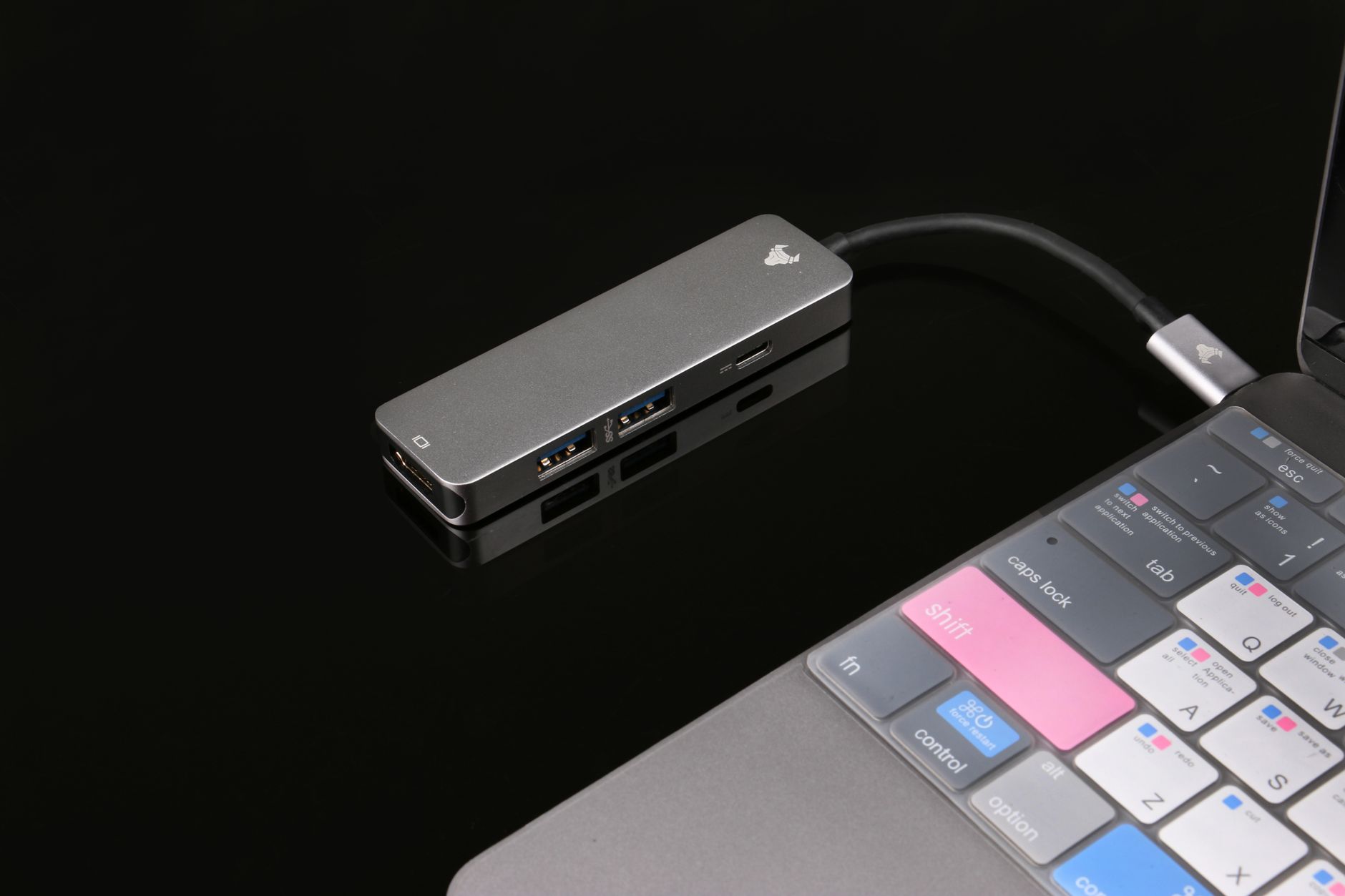
Mac vs. PC compatibility issues
USB-C hubs aren't one-size-fits-all, and that's the frustrating truth many users discover after purchase.
Mac users often run into unique issues. Apple's T2 security chip can be finicky with certain hubs, sometimes refusing to recognize them entirely. And those fancy M1 Macs? They might only support a single external display through a hub, even if the hub advertises dual-monitor capabilities.
PC users face their own headaches. Windows machines vary wildly in how they implement USB-C, especially when it comes to power delivery and video output. Some laptops use Thunderbolt, others use standard USB-C, and mixing them up can lead to disappointing performance.
The solution? Check your specific device model before buying. For Macs, look for "Mac-compatible" labels and read recent reviews from fellow Mac users. PC owners should verify Thunderbolt compatibility if needed and ensure the hub's power delivery matches your laptop's requirements.
Smartphone and tablet connectivity options
Your phone or tablet probably has USB-C too, but that doesn't mean any hub will work.
Android devices support different USB-C features depending on the manufacturer. Samsung's DeX mode works brilliantly with some hubs but fails completely with others. Meanwhile, iPads with USB-C have their own quirks - they might power external drives through some hubs but not others.
The real kicker? Many hubs advertise "universal compatibility" but actually require your device to support USB-C alt modes for full functionality.
For phones, prioritize hubs with pass-through charging and test the hub with your specific device before relying on it for important presentations. Tablet users should look for hubs explicitly tested with their model.
Checking device specifications before purchase
Don't just click "buy" based on the product photos.
First, identify what USB-C version your device supports:
-
USB 3.1 Gen 1 (5Gbps)
-
USB 3.1 Gen 2 (10Gbps)
-
Thunderbolt 3 (40Gbps)
-
Thunderbolt 4 (40Gbps with extra features)
Then check if your device supports these crucial features:
-
USB-C Power Delivery (PD) - What wattage?
-
DisplayPort over USB-C
-
Data transfer protocols
Match these specs with potential hubs. A hub claiming "4K@60Hz output" is useless if your device only supports DisplayPort 1.2.
Smart shoppers also check these often-overlooked details:
-
Required drivers or software
-
Firmware update options
-
Known compatibility issues in user reviews
-
Return policy length (just in case)
The extra five minutes of research saves hours of troubleshooting later.
Troubleshooting Common USB-C Hub Problems

Dealing with overheating issues
USB-C hubs get hot. Like, really hot sometimes.
That's normal to some extent - these little devices pack a lot of functionality into a tiny space. But when your hub feels like it could fry an egg, that's a problem.
First, check where you're using it. Got it sandwiched between your laptop and desk? Bad move. These things need airflow. Place it on a hard, flat surface with nothing covering it.
Second, unplug devices you're not actively using. Each connected gadget generates heat, so your 4K monitor, external SSD, and charging cable all contribute to the temperature spike.
Try this quick fix: a small desk fan pointed at your hub can work wonders. Sounds silly, but it works.
Some hubs also have aluminum bodies for a reason - they're built to dissipate heat. If yours is plastic and constantly overheating, maybe it's time for an upgrade to a metal-bodied model.
Solving connectivity and recognition problems
Your computer won't recognize your hub? So frustrating.
Start with the basics - try a different USB-C port on your computer. Some ports have different capabilities, even on the same device.
If that doesn't work, the classic "turn it off and on again" approach is surprisingly effective. Unplug everything, wait 10 seconds, then reconnect.
Still nothing? Check for driver updates. Hub manufacturers regularly release firmware updates to fix compatibility issues. Visit their website and download the latest drivers for your specific model.
Here's something most people miss: cable quality matters. That random USB-C cable you've been using might be the culprit. Not all cables support the same data transfer speeds or power delivery. Invest in a high-quality cable rated for the functions you need.
The port order can also matter. Some hubs are picky about which devices you connect first. Try connecting your hub to your computer before plugging in peripherals.
Managing power delivery limitations
Power delivery is tricky business with USB-C hubs.
Most hubs can't provide full power to all connected devices simultaneously. They prioritize. So when your laptop battery drains even though it's "charging," that's why.
Check your hub's power rating. If it's a 60W hub but your laptop needs 87W to charge at full speed, you'll always be running a deficit.
Power-hungry peripherals make this worse. External drives, HDMI displays, and smartphone charging all siphon power from what's available.
Try this power management strategy:
-
Charge your laptop directly when you need fast charging
-
Use the hub for charging only when you're not running intensive tasks
-
Connect power-hungry devices directly to wall outlets when possible
Some newer hubs offer dynamic power allocation, automatically adjusting power to devices based on needs. Worth the upgrade if power issues plague you regularly.
Extending the lifespan of your hub
USB-C hubs aren't immortal, but you can help yours live longer.
The main killer? Heat cycles and physical stress. Every time you yank that cable or cram your hub into an overstuffed laptop bag, you're shortening its life.
Create a dedicated spot in your workspace for your hub. Keep cables neatly arranged to prevent tugging and strain on the ports.
Clean your hub regularly. Dust builds up in ports and affects both connectivity and cooling. A small brush or compressed air can work wonders.
Avoid leaving your hub connected and powered 24/7. Electronic components benefit from occasional rest periods. When you're done for the day, disconnect it.
Watch for early warning signs of failure: intermittent connections, devices not being recognized, or unusual heating patterns. Address these promptly before catastrophic failure occurs.
Finally, keep your hub's firmware updated. Manufacturers often release updates that improve power management and reduce unnecessary strain on components.
Top USB-C Hub Recommendations for 2023

Best overall USB-C hubs for versatility
The Anker PowerExpand Elite 13-in-1 is simply a beast of a hub. I've tested dozens, and nothing comes close to its balance of ports and reliability. You get HDMI, Ethernet, USB-A, USB-C, SD card slots - basically everything except your kitchen sink.
If you need something a bit smaller, CalDigit's TS4 gives you almost as many options in a more compact package. What I love about these two is they both deliver stable connections when transferring massive files - no more hair-pulling moments watching progress bars freeze.
For Mac users specifically, Satechi's Multi-Port Adapter V2 works like it was made by Apple themselves. The aluminum finish matches perfectly, and it never gets hot even after hours of use.
Top budget-friendly options without compromising quality
Let's talk real value. The Anker 7-in-1 USB-C hub costs under $35 but performs like something twice the price. I've accidentally dropped mine countless times, and it still works perfectly.
AUKEY's 8-in-1 hub is another standout at around $40. The data transfer speeds are surprisingly fast for the price point - I clocked it at 90% of what premium models deliver.
HyperDrive's Slim 8-in-1 offers an insane port selection at under $50, including a handy 4K HDMI output that actually delivers on its promise. Most budget hubs claim 4K but deliver something much worse.
Premium hubs with advanced features
The OWC Thunderbolt Dock is what professionals drool over. With Thunderbolt 4 compatibility, it pushes transfer speeds up to 40Gbps - that's a 4K movie in seconds.
Belkin's Pro Thunderbolt 4 Dock costs a pretty penny ($399) but includes power delivery up to 90W. That's enough to charge a 16-inch MacBook Pro at full speed while running multiple 4K displays.
Kensington's SD5700T adds a level of security other hubs don't touch - a Kensington lock slot that prevents your expensive hub from walking away at co-working spaces.
Most durable options for travel and daily use
VAVA's 9-in-1 hub uses a braided cable that simply refuses to fray. I've stuffed it in backpacks for two years straight, and it still looks new.
The Twelve South StayGo has an ingenious design with a detachable cable that tucks inside the hub itself - no more tangled messes in your bag.
Anker's PowerExpand Direct 7-in-2 has an aluminum housing that actually works as a heat sink. I've pushed it with simultaneous 4K output and data transfers, and it barely gets warm.
Future-proof hubs with the latest technology
The Cable Matters Thunderbolt 4 hub already supports USB4 specs, making it ready for whatever new devices hit the market in the next few years.
CalDigit's Element Hub includes Thunderbolt 4 ports that can daisy-chain up to six devices - perfect for setting up complex workstations that will still be relevant years from now.
OWC's Thunderbolt Hub includes ports that support DisplayPort 1.4, enabling 8K video output when most competitors max out at 4K. Your eyes might not need 8K today, but they probably will soon enough.

Selecting the right USB-C hub can significantly enhance your device connectivity and workflow efficiency. By understanding the basics, prioritizing essential features, and considering your specific needs, you'll be equipped to make an informed purchase decision. Remember to verify compatibility with your devices and be aware of common troubleshooting solutions to maximize your hub's performance.
As technology continues to evolve, invest in a USB-C hub that not only meets your current requirements but offers flexibility for future needs. Whether you're a professional requiring multiple high-speed data transfers, a creative needing reliable display outputs, or a casual user seeking simple expansion options, there's a perfect USB-C hub waiting for you among our top recommendations for 2023.



0 Comments