How to Master Pixel 10 Pro Photography in 30 Minutes
Your Pixel 10 Pro packs professional-grade camera technology, but most people never unlock its full potential. This guide shows photographers of all skill levels how to master Pixel 10 Pro photography and capture stunning shots in just 30 minutes.
Perfect for busy creatives, weekend adventurers, and anyone wanting to elevate their smartphone photography game without spending hours learning complex techniques. You'll discover the camera settings that deliver instant results and learn quick photography techniques that work in any situation.
We'll cover the essential Pixel 10 Pro camera settings that pros use for immediate improvement, plus rapid-fire portrait and landscape photography methods that guarantee better shots. You'll also explore the phone's most powerful editing tools to polish your photos right on your device, turning good shots into gallery-worthy images in seconds.
Essential Camera Settings for Instant Results
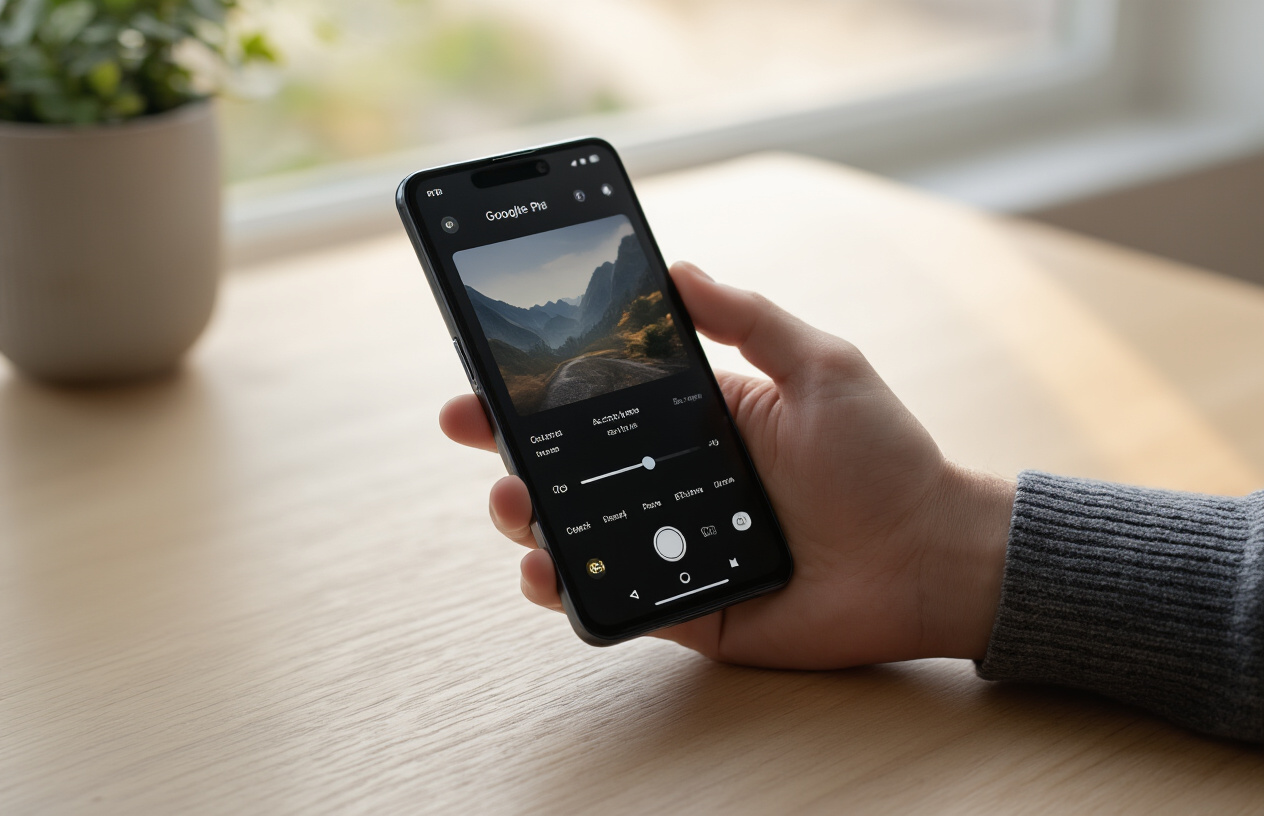
Switch to Pro Mode for Full Control
Pro Mode on your Pixel 10 Pro unlocks the camera's true potential, giving you the same manual controls professional photographers rely on. You'll find this mode buried in your camera app's settings menu—once activated, you'll see sliders for shutter speed, ISO, and white balance appear on your screen.
The real magic happens when you start adjusting these settings yourself instead of letting the camera guess. Shutter speed controls motion blur—use faster speeds like 1/500s for action shots, or slow it down to 1/30s for creative motion effects. White balance fixes color temperature issues, especially useful in mixed lighting situations where your photos might look too orange or blue.
Most people skip Pro Mode because it seems complicated, but the Pixel 10 Pro camera settings make it surprisingly user-friendly. Start by changing just one setting at a time while keeping others on auto. This approach helps you understand how each control affects your final image without feeling overwhelmed.
Optimize ISO Settings for Different Lighting
ISO determines how sensitive your camera sensor is to light, and getting this right can make or break your smartphone photography. The Pixel 10 Pro performs exceptionally well up to ISO 800 in most situations, maintaining sharp detail and minimal noise.
For bright daylight shots, stick to ISO 100-200 for the cleanest images. Indoor lighting calls for ISO 400-800, while low-light situations might require ISO 1600 or higher. The key is finding the sweet spot where you get enough brightness without introducing grain that ruins your photo quality.
| Lighting Condition | Recommended ISO | Best Use Cases |
|---|---|---|
| Bright sunlight | ISO 100-200 | Landscapes, street photography |
| Overcast/Indoor | ISO 400-800 | Portraits, everyday shots |
| Golden hour | ISO 200-400 | Warm portraits, scenic shots |
| Low light/Night | ISO 800-1600+ | Night scenes, indoor events |
Don't be afraid to push ISO higher when necessary—the Pixel 10 Pro's computational photography handles noise reduction better than most smartphones. You'll get better results with a slightly grainy but properly exposed photo than an underexposed image you try to brighten later.
Master Focus Modes for Sharp Images
Sharp focus separates amateur snapshots from professional-looking photos, and your Pixel 10 Pro offers several focus modes to nail this every time. Single-point autofocus gives you precise control—tap exactly where you want the camera to focus, perfect for portraits where you want tack-sharp eyes.
Continuous autofocus works best for moving subjects like pets, kids, or sports. The camera tracks your subject and adjusts focus automatically as they move around the frame. This mode saves countless shots that would otherwise be blurry disappointments.
Manual focus becomes your best friend in challenging situations where autofocus struggles—macro photography, low-light scenes, or shooting through glass. The focus peaking feature highlights sharp areas in your viewfinder, making manual focusing surprisingly easy even on a small smartphone screen.
For quick photography techniques, try focus stacking for extreme close-ups. Take multiple shots at slightly different focus points, then use the built-in editing tools to combine them for incredible detail throughout your entire subject.
Set Up Grid Lines for Better Composition
Grid lines transform your Pixel 10 Pro into a composition powerhouse by overlaying the rule of thirds directly onto your camera screen. Enable this feature in your camera settings—it's one of those small changes that immediately improves every photo you take.
The rule of thirds divides your frame into nine equal sections with two horizontal and two vertical lines. Place important subjects along these lines or at their intersections instead of dead center. Your portraits become more dynamic when eyes align with the upper third line, and landscapes look more balanced when the horizon sits on either the upper or lower third line.
Beyond the rule of thirds, use these grid lines to keep horizons straight and vertical elements properly aligned. Nothing screams amateur photographer like a tilted horizon or leaning buildings that could have been easily avoided with visible reference lines.
The grid also helps with symmetry when you want it—center subjects perfectly by aligning them with the middle vertical line, or create leading lines that flow along the grid structure. Your Pixel 10 Pro photography will show immediate improvement once you start thinking compositionally rather than just pointing and shooting.
Quick Portrait Photography Techniques
Activate Portrait Mode for Professional Depth
Portrait mode on your Pixel 10 Pro transforms ordinary shots into stunning professional-looking photos with that coveted blurred background effect. Simply open your camera app, swipe to Portrait mode, and you'll instantly access the computational photography magic that Google perfected over years of development.
The secret lies in understanding distance. Position your subject 3-6 feet away from the camera for optimal depth detection. Get too close and the Pixel 10 Pro camera struggles to distinguish between subject and background. Too far away and the bokeh effect becomes less pronounced. You'll see a subtle outline appear around your subject when the camera locks onto them perfectly.
Key Portrait Mode Settings:
-
Blur intensity: Adjust the background blur before or after taking the shot
-
Face Retouching: Subtle skin smoothing without the artificial look
-
Color Pop: Keep your subject in full color while the background turns black and white
The magic happens in real-time processing. Your Pixel 10 Pro photography benefits from machine learning algorithms that understand human faces, pets, and even objects. Watch as the viewfinder preview shows exactly how your final image will look, eliminating guesswork.
Use Natural Light Positioning
Natural light makes or breaks portrait photography, and your Pixel 10 Pro camera settings work best when you understand how to position both yourself and your subject. The golden hour - that magical time just after sunrise or before sunset - provides the most flattering light, but you don't need to wait for perfect conditions.
Window light creates beautiful, soft illumination that rivals professional studio setups. Position your subject facing a large window, but not in direct sunlight streaming through. The diffused light wraps around facial features naturally, creating dimension without harsh shadows. Turn your subject at a 45-degree angle to the window for dramatic side lighting that adds depth and character.
Quick Natural Light Tips:
-
Overcast days: Perfect for even, soft lighting without squinting
-
Open shade: Stand under a porch or tree for gentle, diffused light
-
Reflective surfaces: Use white walls or sand to bounce light back onto faces
-
Avoid direct noon sun: Creates unflattering shadows under eyes and nose
Your Pixel 10 Pro's computational photography excels in challenging light conditions, but starting with good natural light gives you superior results. The Night Sight feature even works for portraits in extremely low light, capturing detail your eyes can barely see.
Apply Real-Time Beauty Filters Effectively
Pixel 10 Pro portrait mode includes intelligent beauty filters that enhance without creating that obvious "filtered" look. These real-time adjustments happen as you compose your shot, so you see exactly what you're getting before pressing the shutter.
The key to natural-looking results is subtlety. The beauty filter slider ranges from 0-10, but staying between 2-4 typically produces the most flattering results. Higher settings can create an artificial appearance that screams "heavily edited." Your subject's unique features should still shine through - the goal is enhancement, not transformation.
Smart Beauty Filter Applications:
-
Skin texture: Smooths minor blemishes while preserving natural skin texture
-
Eye brightening: Adds subtle sparkle without looking fake
-
Teeth whitening: Gentle enhancement that looks believable
-
Complexion evening: Balances skin tones across different lighting conditions
The smartphone photography tips pros use involve combining these filters strategically. For outdoor portraits, lighter beauty filter settings work best since natural light already provides flattering illumination. Indoor or artificial lighting might benefit from slightly higher settings to compensate for less favorable conditions.
Remember that these filters work in conjunction with your Pixel 10 Pro's HDR+ processing, which automatically balances exposure across your subject's face. The result is quick photography techniques that deliver consistently professional-looking portraits without spending time in post-processing apps.
Landscape and Nature Shot Mastery

Utilize Ultra-Wide Lens for Expansive Views
Your Pixel 10 Pro's ultra-wide lens transforms ordinary landscapes into breathtaking vistas. Switch to the 0.5x zoom setting to capture sprawling mountain ranges, endless coastlines, and dramatic skies that would otherwise require multiple shots. The 123-degree field of view lets you include foreground elements like rocks or flowers while maintaining those sweeping background views.
Position yourself low to the ground when shooting with the ultra-wide lens to emphasize foreground details and create depth. This technique works exceptionally well for Pixel 10 Pro landscape photography when you want to showcase both intimate details and grand scale simultaneously. Watch for edge distortion – while minimal on the Pixel 10 Pro, slight stretching can occur at frame edges with architectural elements.
Enable HDR for Dynamic Range Enhancement
HDR mode automatically balances bright skies with darker foreground elements, capturing detail in both shadows and highlights. The Pixel 10 Pro's computational photography excels here, combining multiple exposures in milliseconds to produce natural-looking results without the artificial HDR appearance that plagued earlier smartphones.
Access HDR through the camera interface – it's often enabled by default but can be toggled on/off. For Pixel 10 Pro camera settings optimization, HDR works best during sunrise, sunset, or any high-contrast scenario where you're shooting toward bright light sources.
Master Golden Hour Timing
Golden hour occurs twice daily – roughly one hour after sunrise and one hour before sunset. During these windows, warm light creates magical conditions for landscape photography. Your Pixel 10 Pro handles these lighting conditions beautifully, but timing makes the difference between good and extraordinary shots.
Download apps like PhotoPills or Sun Surveyor to predict exact golden hour times for your location. Position yourself at your shooting location 15-20 minutes early to compose shots and test settings. The soft, directional light during golden hour eliminates harsh shadows while painting landscapes in warm, rich tones that make your Pixel 10 Pro photography stand out on social media.
Apply Rule of Thirds for Compelling Compositions
Enable the grid lines in your camera settings to visualize the rule of thirds overlay. Place horizon lines along the upper or lower third line rather than centering them. This creates more dynamic, visually interesting compositions that draw viewers into your landscape images.
For vertical elements like trees or rock formations, align them with the vertical third lines. Your master Pixel 10 Pro camera skills improve dramatically when you consistently apply this compositional technique. The rule works because it mimics how our eyes naturally scan images, creating balance and visual flow.
Use Night Sight for Low-Light Landscapes
Night Sight isn't just for astrophotography – it excels at capturing twilight landscapes, cityscapes, and moody dawn scenes. This quick photography technique uses computational photography to brighten scenes while maintaining natural colors and reducing noise.
Hold your phone steady for 3-6 seconds while Night Sight captures multiple exposures. For best results, brace against a rock, tree, or use a small tripod. Night Sight reveals details in shadow areas that would otherwise disappear, making it perfect for capturing those magical blue hour moments just after sunset when city lights begin twinkling against darkening skies.
Advanced Features That Deliver Instant Impact
Leverage Magic Eraser for Clean Backgrounds
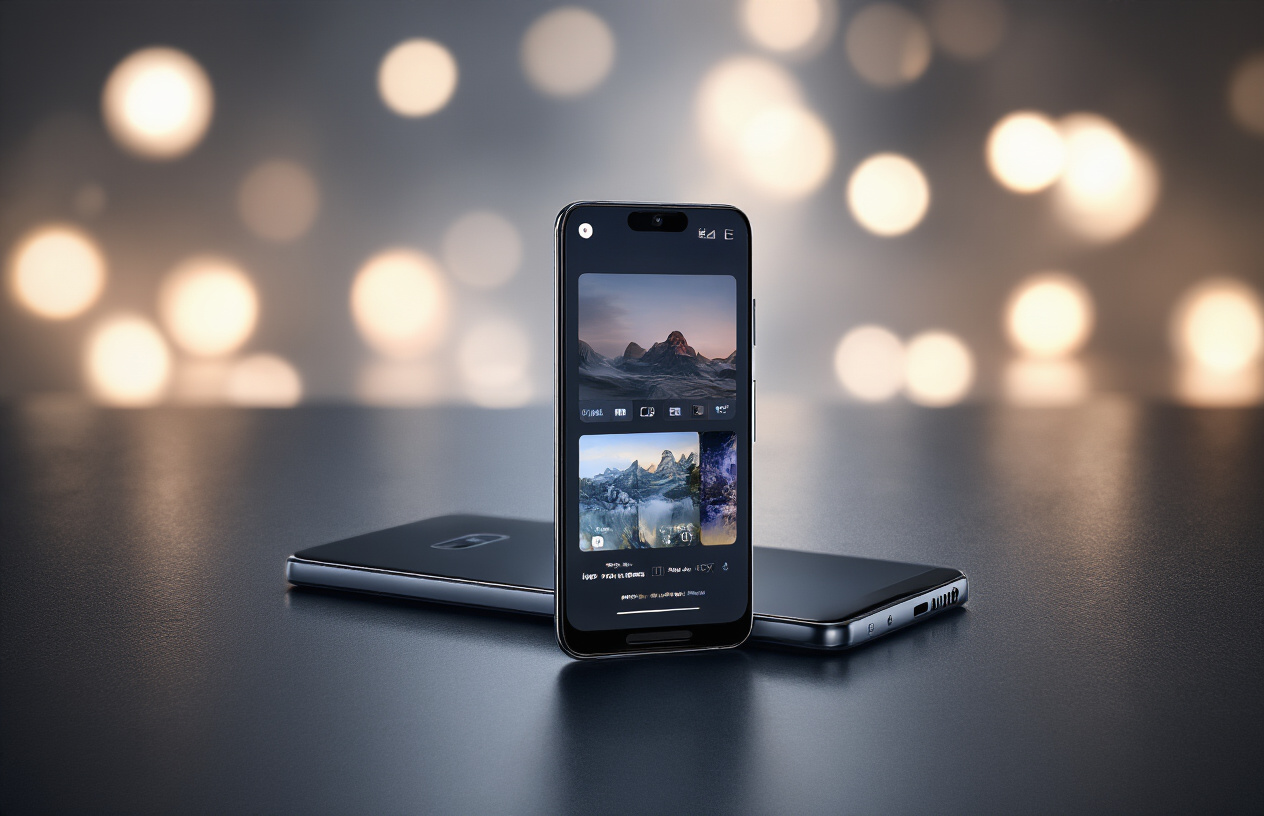
The Magic Eraser feature on your Pixel 10 Pro transforms cluttered photos into professional-looking shots in seconds. This AI-powered tool automatically detects and removes unwanted objects, people, or distractions from your images without requiring complex editing skills.
To access Magic Eraser, open any photo in Google Photos and tap the "Edit" button. Select the Magic Eraser tool, and you'll see suggestions for objects the AI thinks should be removed. Simply tap these suggestions or manually circle objects you want to eliminate. The Pixel 10 Pro photography system intelligently fills in the background, making removals look seamless.
Pro techniques for best results:
-
Remove people from landmarks and tourist spots
-
Eliminate power lines from landscape shots
-
Clear trash or unwanted signs from street photography
-
Remove photobombers from group photos
The key to mastering this Pixel 10 Pro camera feature lies in understanding when to use it. Works best on objects with clear edges against contrasting backgrounds. Avoid using it on subjects that cast important shadows or reflect light onto other elements in your scene.
Master Motion Blur for Dynamic Action Shots
Motion blur capabilities on the Pixel 10 Pro create cinematic effects that bring energy and movement to static images. The camera's computational photography excels at separating moving subjects from backgrounds, producing professional-looking action shots.
Quick motion blur techniques:
-
Panning shots: Follow moving subjects while using a slower shutter speed
-
Background blur: Keep your subject sharp while blurring the surrounding motion
-
Creative blur: Intentionally blur parts of the frame for artistic effect
Access this feature through the camera's motion mode or by adjusting exposure settings manually. The Pixel 10 Pro camera settings automatically detect movement and suggest optimal blur levels. For sports photography, activate burst mode while panning to capture the perfect moment with smooth background blur.
Settings for different scenarios:
-
Walking subjects: 1/30s shutter speed
-
Cars or bikes: 1/60s to 1/125s
-
Fast action: 1/250s with selective blur
Use Long Exposure Mode for Creative Effects
Long exposure photography on your Pixel 10 Pro opens up creative possibilities that were once exclusive to professional cameras. This mode combines multiple frames over extended periods to create stunning visual effects.
Creative applications include:
-
Water effects: Transform choppy water into smooth, glass-like surfaces
-
Cloud movement: Capture streaking clouds across the sky
-
Light trails: Record car headlights or star movements
-
Crowd removal: Make busy locations appear empty
Activate long exposure through the camera's Night Sight or specialized modes. The smartphone photography system stabilizes images computationally, reducing the need for tripods in many situations. However, for best results with exposures longer than 10 seconds, use a stable surface or tripod.
Essential long exposure tips:
-
Start with 3-8 second exposures for water
-
Use 15-30 seconds for dramatic cloud movement
-
Experiment with different times of day for varied lighting effects
-
Enable the timer to avoid camera shake when triggering shots
The Pixel 10 Pro's advanced processing algorithms automatically adjust for optimal exposure, making long exposure photography accessible to beginners while providing the control professionals need.
Quick Editing Tricks Using Built-in Tools
Apply One-Touch Enhancement Filters
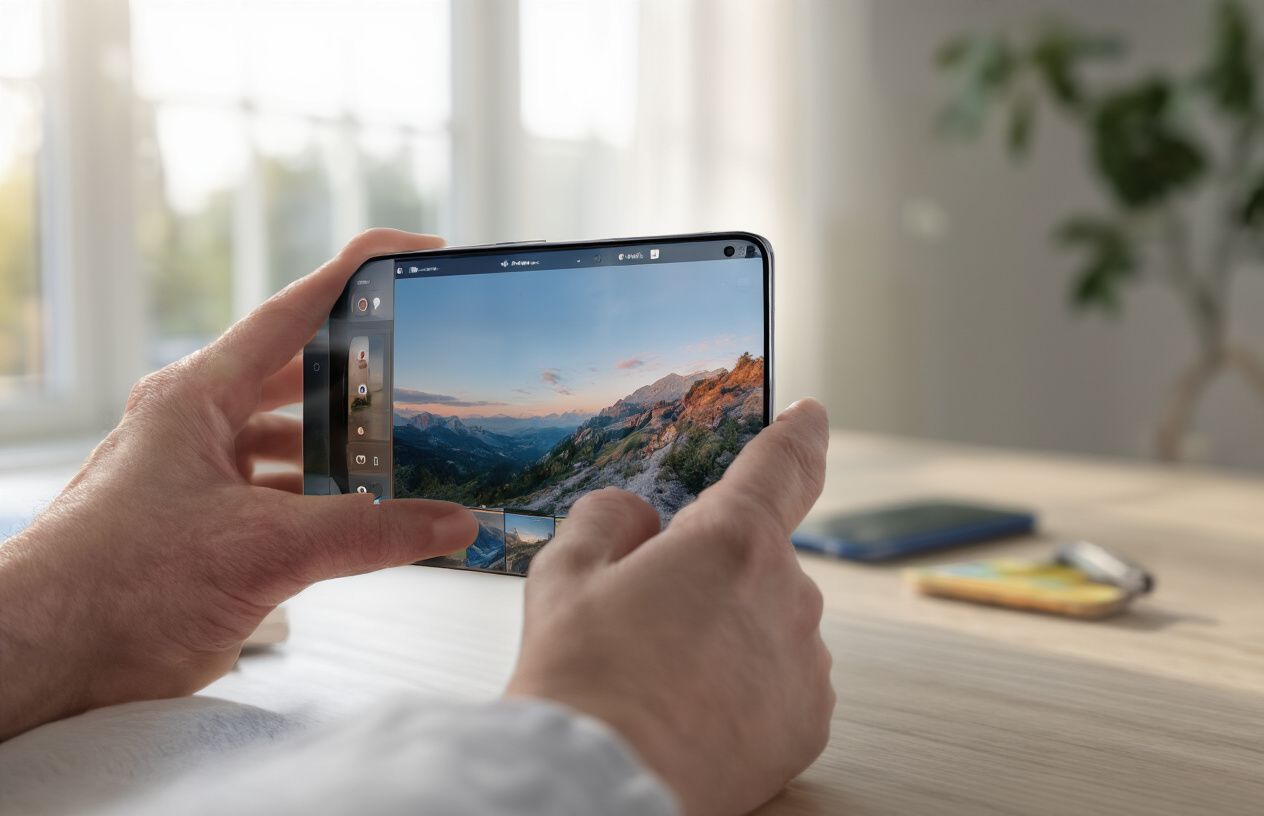
The Pixel 10 Pro's built-in Magic Eraser and Photo Unblur tools work like a charm for instant photo improvements. Simply open any photo in Google Photos, tap the edit button, and you'll see these AI-powered options ready to transform your shots. The Auto-Enhance feature analyzes your image in real-time and applies the perfect combination of adjustments based on what it detects in your scene.
For dramatic results, try the HDR+ filter which balances shadows and highlights automatically. The Portrait filter adds professional-looking depth blur to any photo, even if you didn't shoot it in Portrait mode originally. These Pixel 10 Pro editing tools save you from spending hours tweaking individual settings.
Adjust Brightness and Contrast in Seconds
Quick brightness adjustments happen right in the camera viewfinder before you even take the shot. Tap anywhere on your screen to focus, then slide your finger up or down to instantly brighten or darken the exposure. This real-time adjustment gives you perfect lighting without any post-processing.
After taking photos, the editing interface offers precise brightness and contrast sliders. The exposure slider handles overall brightness, while the brightness slider targets midtones specifically. For contrast, the blacks and whites sliders provide more control than the basic contrast setting. These quick photography techniques ensure your photos look professional straight out of the camera.
Use Portrait Light Adjustments
Portrait Light on the Pixel 10 Pro mimics studio lighting setups with just a few taps. After taking a portrait, open the photo and select Portrait Light from the editing menu. You'll see options like Natural, Studio, and Stage lighting effects.
The Face Light feature brightens your subject's face while maintaining natural skin tones. Adjust the intensity by dragging the slider - subtle changes often work best. The background blur can be fine-tuned independently, letting you create that coveted shallow depth-of-field look that usually requires expensive lenses.
Master Color Pop Effects for Dramatic Results
Color Pop transforms ordinary photos into striking images by desaturating the background while keeping your subject vibrant. This Pixel 10 Pro photography feature works automatically when you select a person, pet, or prominent object in your frame.
For custom Color Pop effects, use the selection tool to manually choose which areas stay colorful. The Sky feature specifically enhances blue skies and cloud details, making landscape shots more dramatic. Combine this with the Warmth slider to create golden hour effects any time of day, giving your smartphone photography a professional edge without complex editing software.
Your Pixel 10 Pro is packed with incredible camera capabilities that can transform your photography game in just half an hour. By nailing down the essential settings, practicing those quick portrait tricks, and learning how to capture stunning landscapes, you've got the foundation to take photos that'll make people stop scrolling. The advanced features like computational photography modes and AI enhancements aren't just fancy tech – they're your secret weapons for creating shots that look professionally done.
Don't forget that great photos often come alive in post-processing, and your phone's built-in editing tools are surprisingly powerful. Start with these techniques today and spend just 30 minutes experimenting with each section. Your camera roll will thank you, and you'll finally feel confident pulling out your Pixel 10 Pro knowing you can capture whatever moment comes your way.



0 Comments