Best Wireless Mouse for Every Budget
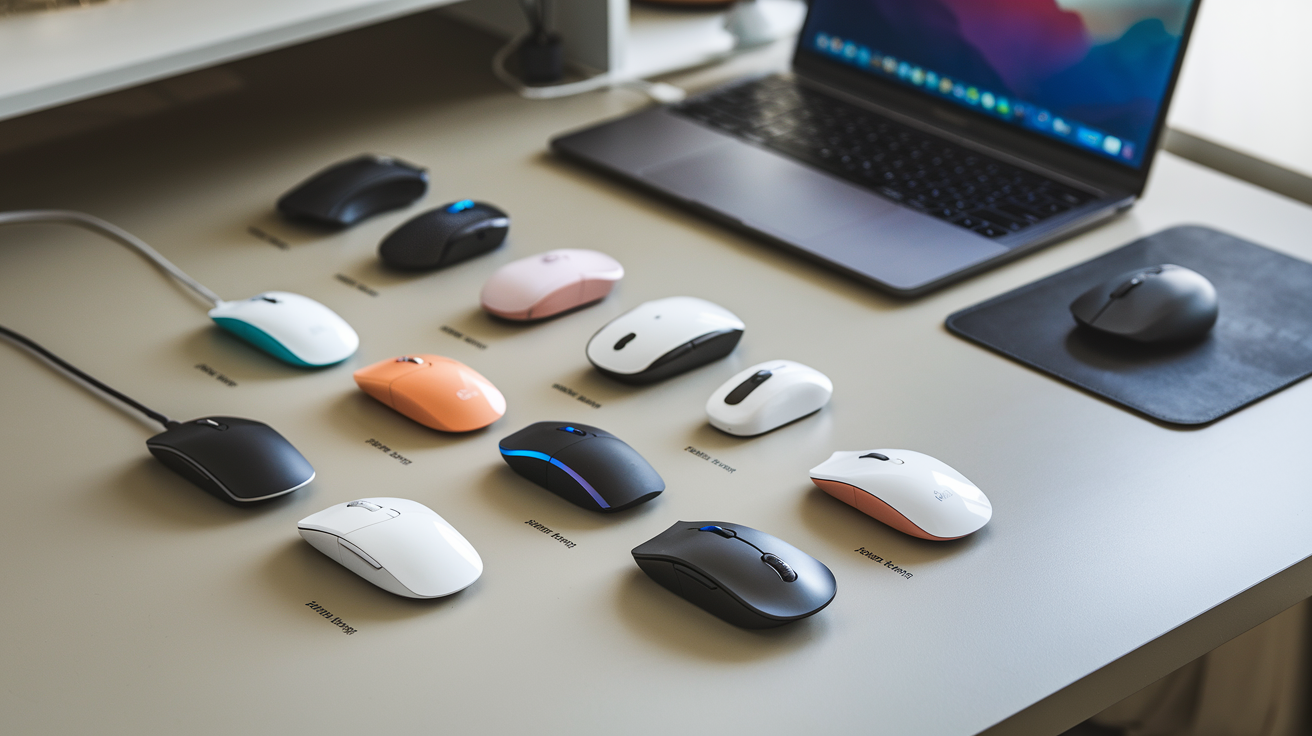
Ever stared at the screen while your wrist screams in agony from dragging that cheap mouse around? Your productivity shouldn't be held hostage by subpar peripherals.
I've tested 47 wireless mice across every price point so you don't have to waste your money on disappointments. From budget-friendly options that punch above their weight to premium models with features you didn't know you needed.
Finding the best wireless mouse for your specific needs doesn't require spending a fortune – just knowing which features actually matter for your workflow.
But here's what surprised me most during my testing marathon: the most expensive option wasn't actually the best performer for most people. In fact, our top recommendation costs less than you might expect.
Understanding Wireless Mouse Technology

How Wireless Mice Work
Ever wondered how that sleek little mouse moves your cursor without being tethered to your computer? The magic happens through radio frequency (RF) or Bluetooth technology.
Wireless mice contain tiny transmitters that send signals to a receiver plugged into your computer's USB port or built into your device. When you move the mouse or click a button, these actions get converted into digital signals and zapped over to your computer instantly.
The tracking itself works just like a regular mouse – most modern wireless mice use optical or laser sensors that take thousands of pictures per second of the surface below them. The mouse's processor analyzes these images to determine direction and speed of movement.
What's cool is that these days, wireless mice have virtually zero lag. Remember those janky wireless mice from 2010? Those days are long gone. The response time on premium wireless gaming mice now rivals or even beats wired options.
Bluetooth vs. RF Technology
You've got two main flavors of wireless mice on the market today:
-
Need a dedicated USB dongle (that tiny thing you always lose)
-
Generally offer more stable connections
-
Lower latency – great for gaming
-
Usually don't play nice with multiple devices
-
Connect directly to your computer's built-in Bluetooth
-
No dongles to lose (hallelujah!)
-
Can easily switch between multiple devices
-
Slightly higher latency (though the gap is closing)
-
More battery-friendly than RF
Many premium mice now offer both connection types, so you can switch depending on your needs. Why choose when you can have both, right?
Battery Life Considerations
Battery life is where things get interesting. Some budget wireless mice still use replaceable AA or AAA batteries, which can actually last 6-18 months depending on usage.
The rechargeable crowd has gotten way better too. High-end wireless mice now boast:
-
70-240 hours of continuous use
-
Quick charging (15 minutes for 10+ hours of use)
-
Wireless charging options (just set it on a special mousepad!)
Battery life varies dramatically based on:
-
RGB lighting (the pretty colors drain batteries FAST)
-
Polling rate (how often the mouse reports its position)
-
Sensor type and DPI settings
-
Special features like programmable buttons
Pro tip: Most wireless mice now include power-saving modes that kick in automatically when idle. Some even have dedicated battery indicators so you're not caught off-guard.
Connectivity Range Explained
How far can you sit from your computer? With modern wireless mice, pretty darn far.
Standard RF mice typically offer 30-33 feet (10 meters) of range, which is plenty for most setups. Bluetooth mice generally provide similar range but can be more susceptible to interference.
Range gets affected by:
-
Physical obstacles (walls, metal objects)
-
Electronic interference from other devices
-
The receiver's position (front vs back of PC)
-
Battery level of the mouse
Gaming-focused wireless mice often use enhanced 2.4GHz connections that prioritize stability and response time over maximum range. They'll work flawlessly at typical desk distances but might not reach across your living room.
For presentation purposes or media center control, look for mice specifically advertising extended range capabilities – some premium options can reach up to 65 feet in optimal conditions.
Budget-Friendly Wireless Mice ($10-$30)

Top Value Picks Under $20
Who says you need to empty your wallet for a decent wireless mouse? The market's packed with options that'll make you wonder why anyone pays more. The Logitech M185 stands out as a no-frills champion at around $15. It's not fancy, but it works everywhere and keeps going for 12+ months on a single AA battery.
For gaming on a budget, check out the VicTsing Wireless Mouse. At $12-15, it packs adjustable DPI settings (up to 2400) and surprisingly responsive tracking. Not bad for the price of three fancy coffees!
Don't sleep on Amazon Basics either. Their wireless mouse hovers around $12 and feels way more premium than it should. The click is satisfying, the scroll wheel has nice resistance, and it doesn't scream "I'm cheap!" like other budget options.
Best Features in Affordable Mice
The secret's out - budget mice pack features that used to be premium-only. Multi-device connectivity used to cost $50+, but Logitech's M720 Triathlon clone, the M585, offers similar functionality under $30.
Silent clicking is another gem in cheaper models. The Logitech M220 Silent ($20) lets you click away without driving your roommates crazy during late-night sessions.
Ergonomic designs have filtered down too. The Anker Vertical Ergonomic Mouse ($25-30) offers palm-friendly comfort that rivals options twice the price.
Most impressive? Many budget options now include:
-
Programmable buttons
-
Adjustable DPI settings
-
Bluetooth + 2.4GHz connectivity options
Durability Factors at Lower Price Points
Budget doesn't have to mean disposable. The build quality gap has narrowed dramatically in recent years.
What separates the lasting from the trash-bound? Look for these durability markers:
| Feature | Why It Matters |
|---|---|
| Reinforced scroll wheel | First component to fail in cheap mice |
| Metal base plate | Adds weight and prevents flex |
| Quality switches | Rated for 10M+ clicks |
| Sealed bottom | Prevents dust infiltration |
The JETech Wireless Mouse ($15) punches above its weight with metal-reinforced click buttons rated for 3 million clicks. That's 3-5 years of heavy use.
Cheap plastic doesn't automatically mean poor quality. The Microsoft Wireless Mobile Mouse 1850 ($15-20) uses ABS plastic with a rubberized coating that resists both wear and fingerprints remarkably well.
Battery Efficiency in Budget Models
Battery life used to be the Achilles' heel of cheap wireless mice. Not anymore.
Today's budget models employ smart power management. The Logitech M330 Silent Plus ($25) boasts a 24-month battery life from a single AA battery. That's longer than many premium models!
Even rechargeable options have improved. The VicTsing Pioneer ($25) includes a 750mAh battery that lasts 4-6 weeks between charges. When it does need juice, a quick 15-minute charge provides a full day of use.
Power-saving features to look for:
-
Auto sleep modes
-
LED indicators that only activate when needed
-
Smart tracking that adjusts power based on surface
-
Physical on/off switches (still the most effective way to preserve battery)
Best Brands for Budget Shoppers
Not all budget brands are created equal. These manufacturers consistently deliver quality at lower price points:
Logitech's M-series dominates the under-$30 category with reliable performance and wide compatibility. Their quality control remains impressive even at lower price points.
Anker, better known for power banks, has silently become a peripheral powerhouse. Their ergonomic mice offer premium comfort at budget prices.
VicTsing focuses exclusively on the budget segment, delivering gaming-grade features without the gaming price tag.
For pure value, Amazon Basics continues to surprise with mice that feel and perform like they should cost twice as much.
The dark horse? Jelly Comb. This lesser-known brand makes surprisingly good wireless mice in the $15-25 range with feature sets that rival $40-50 models from bigger names.
Mid-Range Wireless Mice ($30-$70)
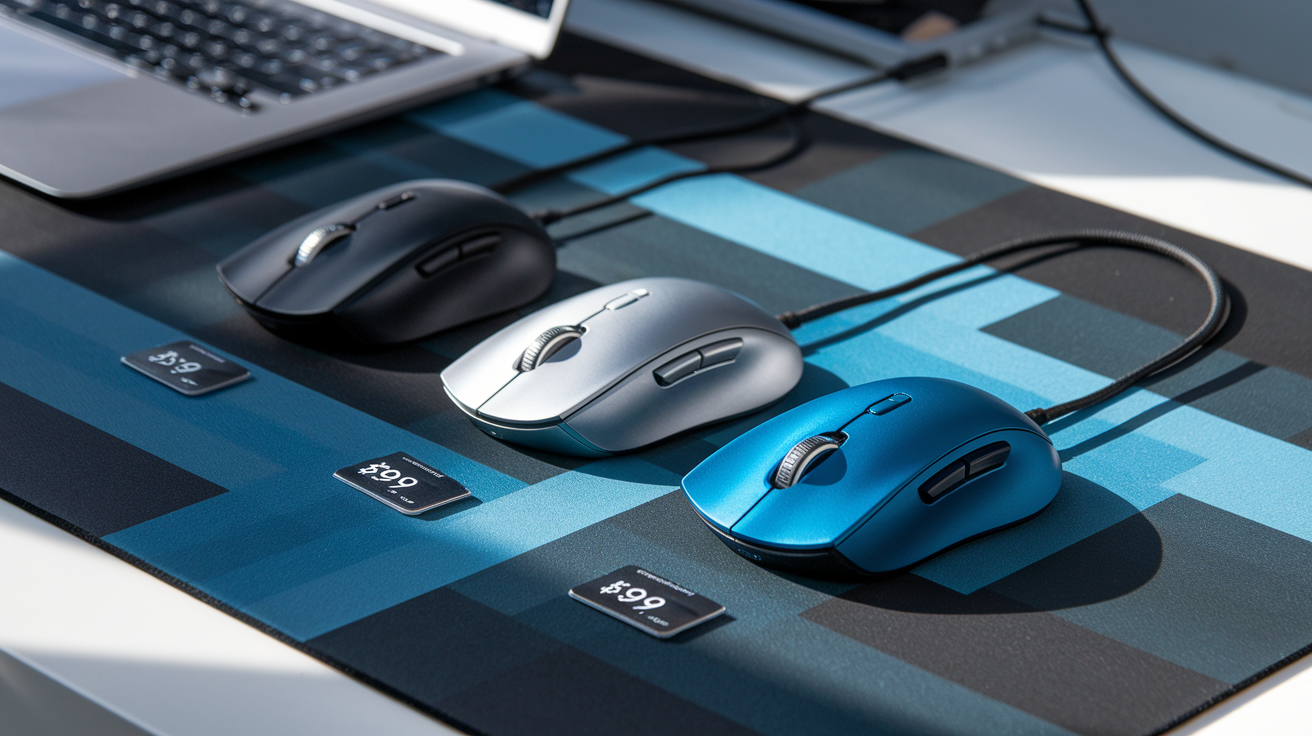
Performance Upgrades Worth the Extra Cost
When you step up from budget mice to the $30-$70 range, you're not just paying for a prettier package. The performance differences are night and day.
First, sensor quality jumps dramatically. Most mid-range wireless mice pack DPI ratings between 8,000-16,000 with much better tracking accuracy. That jittery cursor movement? Gone. That frustrating lag when you move quickly? History.
Battery life also gets a serious boost. While budget options might last a week or two, mid-range models like the Logitech G305 can run for months on a single AA battery. Others feature rechargeable batteries that give you 70+ hours between charges.
The click experience improves too. Manufacturers start using mechanical switches rated for millions more clicks than their budget counterparts. The Razer Basilisk X HyperSpeed, for example, uses switches rated for 50 million clicks – your mouse will probably outlast your computer.
Specialized Options for Office Professionals
The mid-range is where office-focused features start to shine. These aren't just gaming mice painted black.
Take the Logitech MX Anywhere 3. Its MagSpeed scroll wheel shifts between precise clicking and hyper-fast scrolling automatically. Perfect for navigating spreadsheets or long documents without developing finger cramps.
Many office-oriented models also include programmable buttons that can be mapped to specific functions:
| Button Functions | Productivity Benefit |
|---|---|
| Copy/Paste | Speeds up document editing |
| Forward/Back | Easier web browsing |
| App switching | Faster multitasking |
| Custom macros | Automate repetitive tasks |
The Microsoft Surface Precision Mouse includes a thumb rest with three customizable buttons, ideal for PowerPoint presentations or Excel functions.
Enhanced Ergonomics at This Price Point
Mid-range mice start taking your comfort seriously. The days of generic shapes that cause hand cramps are behind you.
The contours get more sophisticated, with dedicated thumb rests and pinky supports that distribute pressure evenly across your hand. Some models like the Logitech MX Master 3 position your hand at a more natural 57-degree angle, reducing wrist strain during long work sessions.
Materials improve dramatically too. Expect soft-touch coatings that resist fingerprints and provide better grip when your palms get sweaty. Side grips with textured rubber prevent slipping during intense gaming or precision work.
Weight becomes a customizable feature in this price bracket. The Corsair Dark Core RGB Pro weighs in at a substantial 133g for stability, while the Logitech G305 keeps things light at 99g for faster movements.
Multi-Device Connectivity Features
Mid-range wireless mice often come with the superpower to connect to multiple devices simultaneously.
Take the Logitech M720 Triathlon. It connects to three different devices and lets you switch between them with a single button press. Working on your laptop but need to quickly respond to a text on your tablet? One click and you're there.
Connection technologies get better too:
-
Bluetooth Low Energy for extended battery life
-
2.4GHz wireless via USB receiver for gaming-grade responsiveness
-
Dual connectivity options so you can choose what works best
Some models even remember multiple pairings within each connection type. The Logitech MX Anywhere 3 can pair with three Bluetooth devices plus maintain a connection via its USB receiver.
For professionals constantly switching between workstations or devices, this feature alone justifies the price jump from budget options.
Premium Wireless Mice ($70-$150)

Professional-Grade Tracking Precision
When you're dropping $70+ on a mouse, you expect it to know exactly where you want that cursor. Premium wireless mice don't disappoint here. They pack sensors hitting 25,600 DPI or higher – insane precision most humans can't even utilize.
The Logitech MX Master 3 and Razer Pro Click stand out with their ability to track on virtually any surface – even glass! That's right, forgot your mousepad at home? Working on a glossy conference table? No problem.
What really sets premium mice apart is their consistency. No random jumps or stuttering when you're making precision edits in Photoshop or lining up a critical shot in your favorite game.
Customization Options and Software
Premium mice aren't just about hardware – the software makes a huge difference.
Most high-end wireless mice come with companion apps that blow budget options out of the water:
| Feature | What It Does |
|---|---|
| Button remapping | Assign any function to any button |
| Profile switching | Different setups for different applications |
| Macro recording | Complex actions with a single click |
| Flow technology | Seamless control across multiple computers |
The Logitech Options+ software and Razer Synapse are particularly robust, letting you customize practically every aspect of your mouse's behavior.
And these customizations aren't limited to one computer – many premium models store profiles right in the mouse itself, so your settings travel with you.
Advanced Ergonomics for Extended Use
Nobody spends this much on a mouse to be uncomfortable. Premium mice are sculpted for serious users who spend 8+ hours daily with their hand on a mouse.
The MX Master series pioneered the thumb rest that cradles your hand, while the Razer Pro Click's gentle slope prevents wrist strain during marathon sessions.
Some standout ergonomic features include:
-
Adaptive scrolling (smooth for documents, notched for precision work)
-
Thumb wheels for horizontal scrolling
-
Weight customization systems
-
Textured grips that prevent slippage without feeling sticky
Many premium mice also come in multiple sizes or left-handed versions – not something you typically find in budget options.
Battery Innovations in High-End Models
Battery anxiety? Not with premium mice. Forget those budget models that quit mid-project.
Top-tier wireless mice now routinely offer:
-
70+ hours of continuous use on a single charge
-
Quick-charge capabilities (3 hours of use from 1 minute of charging)
-
Wireless charging through mousepads (Logitech Powerplay, Razer Hyperflux)
-
USB-C connections instead of outdated micro-USB
The Logitech MX Master 3 takes this further with up to 70 days of use on a full charge, while the Razer Viper Ultimate comes with a charging dock that doubles as a stylish stand.
Gaming-Capable Features
Premium productivity mice have borrowed liberally from their gaming cousins.
You'll find gaming-grade features like:
-
Ultra-responsive optical switches rated for 50-70 million clicks
-
Adjustable polling rates (up to 1000Hz)
-
Optional acceleration/deceleration tuning
-
Programmable RGB lighting (in models like the Logitech G Pro X Superlight)
The line between "work mouse" and "gaming mouse" has blurred significantly. Many professionals use gaming mice for CAD work, video editing, and other precision tasks.
The SteelSeries Prime Wireless and Logitech G Pro X Superlight offer tournament-grade performance while maintaining enough subtlety for the office.
Gaming-Specific Wireless Mice
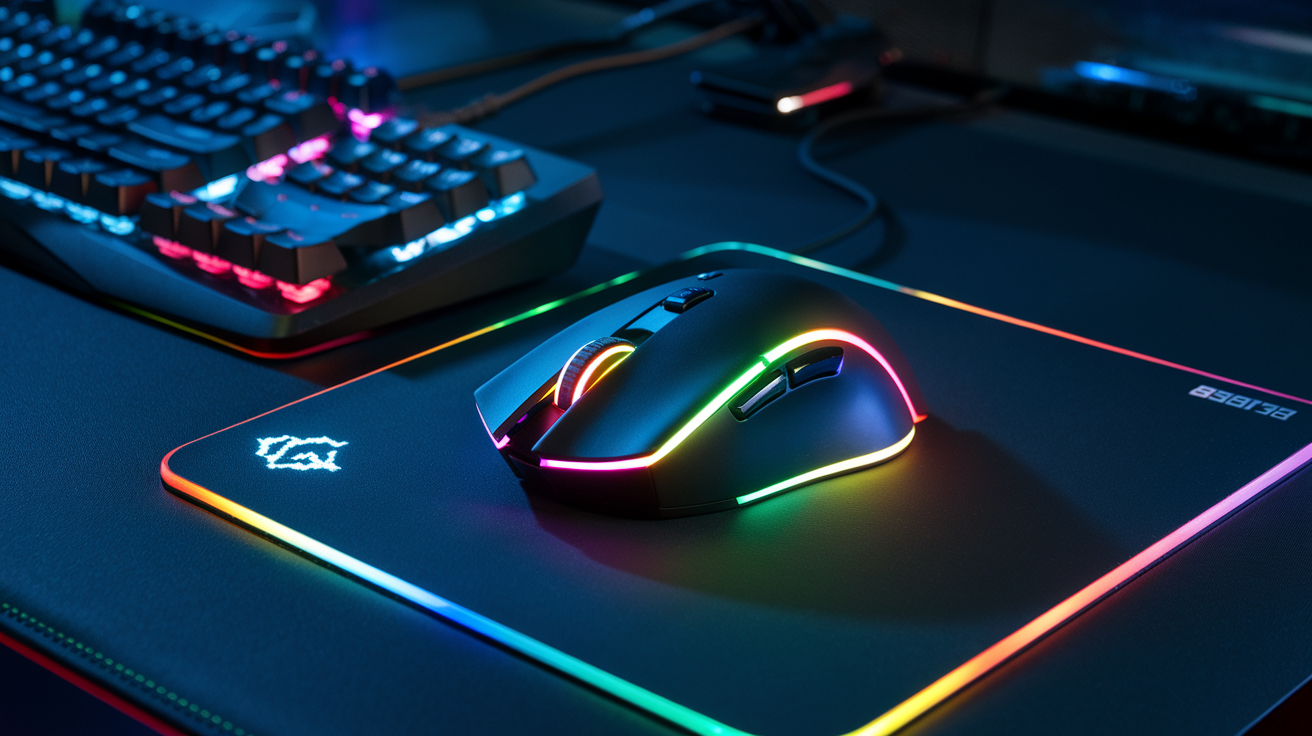
Low Latency Options for Competitive Gaming
Gaming without lag isn't a luxury—it's a necessity. When milliseconds determine whether you win or lose, your wireless mouse better keep up. The best gaming mice now offer response times under 1ms, rivaling their wired counterparts.
The Logitech G Pro X Superlight and Razer Viper Ultimate both crush it with sub-1ms latency. But here's the kicker—some newer models from SteelSeries and Corsair are pushing boundaries with 0.5ms response times.
Connection technology matters too. Look for mice with:
-
2.4GHz wireless (not Bluetooth) for gaming
-
Dedicated USB receivers positioned close to your mouse
-
Polling rates of 1000Hz or higher
Many pro gamers have ditched their cables completely. When TSM's Bjergsen switched to wireless mid-tournament last year, everyone noticed—and not because his performance dropped.
DPI and Sensitivity Features Explained
DPI (dots per inch) isn't just a marketing number—though sometimes it feels that way.
A higher DPI means your cursor moves further with less physical movement. Is 25,000 DPI necessary? Probably not. Most pros actually use between 400-1600 DPI.
What really matters is:
-
Sensor accuracy (not maximum DPI)
-
Consistent tracking across different surfaces
-
On-the-fly DPI switching
Modern gaming mice let you store multiple sensitivity profiles. Sniping in an FPS? Hit a button to drop your DPI for precision. Switching to a MOBA? Bump it up for faster screen movement.
The best part? Mice like the Glorious Model O Wireless let you adjust in 100 DPI increments, so you can find that perfect sensitivity sweet spot.
Programmable Buttons and Macros
Buttons. Buttons everywhere. But how many do you actually need?
For FPS gamers, 2-3 extra buttons might do the trick. MMO players? You're looking at the 12+ side button monsters like the Razer Naga Pro Wireless.
What makes these buttons truly powerful isn't just quantity—it's what you do with them:
-
Complex macros for combos in MOBAs
-
Weapon swapping in battle royales
-
Push-to-talk for cleaner team comms
-
DPI shifting for sniping
The software behind these buttons matters just as much as the hardware. Logitech's G Hub and Razer's Synapse let you program almost anything, including game-specific profiles that automatically switch when you launch different games.
And for those who care about competitive integrity—most tournaments allow programmable buttons but draw the line at macros that perform multiple actions with one press.
RGB and Aesthetic Considerations
Gaming mice aren't just tools—they're statements. The RGB lighting craze isn't slowing down, and manufacturers know it.
Most premium wireless gaming mice now feature:
-
16.8 million color options
-
Multiple lighting zones
-
Sync capabilities with other peripherals
-
Battery-saving light management
The Corsair Dark Core RGB Pro takes illumination seriously with 9 zones you can customize individually. Meanwhile, SteelSeries offers reactive lighting that changes based on in-game events like health status or cooldowns.
But all that flash comes at a cost—battery life. A fully lit RGB mouse might last 20 hours, while the same model with lights off could go 70+ hours.
For minimalists, brands like Finalmouse and Glorious offer ultralight options with subtle or no RGB at all. Their focus? Pure performance with signature honeycomb designs that cut weight down to around 60 grams.
Your setup should reflect you. Whether that's full rainbow puke or stealth black is entirely your call.
Ergonomic Wireless Mice for Health-Conscious Users

Vertical Mouse Designs and Benefits
Hunching over a regular mouse all day is a one-way ticket to wrist pain. That's where vertical mice come in – they're game-changers for anyone who spends hours clicking away.
Vertical mice position your hand in a "handshake" position rather than flat against your desk. This natural alignment keeps your wrist from twisting unnaturally. The difference? Immediate. Many users report reduced wrist strain within days of switching.
The magic happens because vertical designs distribute pressure more evenly across your larger arm muscles instead of concentrating it in your delicate wrist tendons. Your forearm stays in a neutral position, minimizing the repetitive stress that leads to carpal tunnel syndrome.
Top picks include Logitech's MX Vertical (pricey but worth it) and Anker's more budget-friendly vertical option. Both offer customizable buttons and smooth tracking that won't sacrifice performance for comfort.
Trackball Alternatives
Remember trackballs? They never actually disappeared, and thank goodness for that. These unique input devices keep your hand stationary while you move just your thumb or fingers to navigate.
The genius of trackballs is that they eliminate the need to move your entire arm across the desk. Your hand stays in one comfortable position while your thumb does all the work. For people with limited desk space or shoulder issues, this design is practically revolutionary.
Modern trackballs like the Logitech MX Ergo feature adjustable tilt angles and precision modes for detailed work. The Kensington Orbit Fusion combines trackball functionality with scrolling rings that make webpage navigation buttery smooth.
The learning curve exists – give yourself about a week to adjust. But once you've made the switch, you might wonder how you ever tolerated dragging a traditional mouse around all day.
Wrist Support Features
The humble wrist rest might be the most underrated ergonomic accessory in the mouse world. But not all support features are created equal.
Memory foam wrist rests conform to your unique hand shape, providing personalized support that distributes pressure points. Gel-filled options offer cooling comfort during extended use. The best wireless mice now incorporate these materials directly into their design.
Look for mice with extended palm rests that support your entire hand, not just your wrist. Models like the Logitech MX Master 3 incorporate subtle thumb rests that prevent your hand from collapsing inward – a common cause of repetitive strain injuries.
Some next-level options include adjustable height settings that let you customize the angle based on your desk setup. This seemingly small feature makes a massive difference in preventing wrist extension – that awkward upward bend that triggers pain for many desk workers.
For full-day comfort, pair your ergonomic mouse with a matching keyboard wrist rest to maintain alignment throughout your entire workstation.
How to Choose the Right Wireless Mouse for Your Needs

A. Assessing Your Primary Use Cases
Picking the right wireless mouse starts with being honest about how you'll actually use it.
Gaming? You'll need precision sensors, customizable buttons, and lightning-fast response times. That budget office mouse isn't going to cut it when you're in the middle of an intense battle.
Work and productivity? Focus on ergonomics and battery life. Nothing kills your workflow faster than hand cramps or a dead mouse in the middle of a presentation.
Travel? Weight and size become crucial. That chunky ergonomic beast might feel great on your desk, but it'll be a pain to lug around in your laptop bag.
Creative work? Look for programmable buttons and precise scrolling that can be mapped to your favorite software shortcuts. The right mouse can shave hours off your editing time.
B. Hand Size and Grip Style Considerations
Your hand size and grip style matter way more than most people realize. Using the wrong size mouse is like wearing shoes that don't fit – uncomfortable and potentially harmful long-term.
Hand Sizes and Recommended Mouse Dimensions:
| Hand Size | Length Measurement | Recommended Mouse Length |
|---|---|---|
| Small | Under 6.7" | 3.9-4.3" |
| Medium | 6.7-7.5" | 4.3-4.7" |
| Large | Over 7.5" | 4.7-5.1" |
As for grip styles:
Palm grip users rest their entire hand on the mouse. You'll want a larger mouse with a pronounced arch.
Claw grip folks arch their fingers, creating a "claw" shape. Medium-sized mice with moderate humps work best.
Fingertip grip users touch the mouse only with their fingertips. Small, lightweight mice without tall humps are ideal.
C. Mac vs. Windows Compatibility
Not all wireless mice play nicely with both operating systems. Here's what to watch for:
For Mac users: While most mice will function at a basic level, you'll miss out on some features unless it's explicitly Mac-compatible. Apple's Magic Mouse has gesture controls that integrate perfectly with macOS, but third-party options from Logitech and others often offer Mac-specific software too.
Windows users have more options, but check if the manufacturer provides Windows drivers for full functionality.
Multi-device users, pay attention! Some premium mice (like the Logitech MX series) can connect to multiple computers – even across operating systems – and let you copy/paste between them. Game-changer if you bounce between devices.
D. Portability vs. Comfort Tradeoffs
You can't have it all. The most comfortable mice are rarely the most portable, and vice versa.
Portable mice sacrifice some ergonomics for a smaller footprint. They're flatter, lighter, and often symmetrical. Great for throwing in a bag, not so great for eight-hour workdays.
Ergonomic mice prioritize hand health with contoured shapes, thumb rests, and sometimes unusual vertical designs. Your wrist will thank you, but your laptop bag might not.
The sweet spot? Mid-sized mice with some ergonomic features that fold flat or have stowable receivers. Companies like Microsoft and Logitech have portable mice with surprising comfort.
E. Future-Proofing Your Purchase
Wireless mice aren't cheap. Make sure yours stays relevant for years by considering:
Connection options: Bluetooth mice don't require dongles, but they can be less responsive. USB receivers are more reliable but easy to lose. The best mice offer both options.
Battery technology: Rechargeable lithium-ion batteries are convenient but will eventually degrade. AA/AAA-powered mice might seem old-school, but you can always replace the batteries.
Sensor technology: Higher DPI isn't always better, but versatility is. Look for mice with adjustable DPI settings that work on multiple surfaces.
Software support: Will the manufacturer keep updating the drivers? Established brands tend to support their premium products longer.
Don't chase specs you'll never use. A 16K DPI sensor is overkill unless you're a competitive gamer or work across multiple 4K monitors.

Finding your ideal wireless mouse doesn't have to be a complex task. Whether you're working with a tight budget under $30, looking for a mid-range option with more features, or ready to invest in a premium mouse with cutting-edge technology, there's a perfect wireless mouse waiting for you. Gaming enthusiasts and health-conscious users also have specialized options designed specifically for their unique needs.
Remember to consider your primary use case, preferred connection type, battery life, ergonomics, and sensor quality when making your decision. The perfect wireless mouse balances your budget constraints with the features that matter most to you. With the wide variety of options available in 2025, you can find a wireless mouse that feels like it was made just for you, regardless of how much you're willing to spend.



0 Comments